Terminal UI
The TraceCraft Terminal UI (TUI) is the flagship feature of TraceCraft — a powerful, interactive trace explorer that runs right in your terminal. Analyze LLM traces, debug agent behavior, inspect prompts and responses, compare performance across runs, and understand exactly what your AI application did at every step.
Two Ways to Get Traces into the TUI
Path B — OTLP receiver (zero code changes — the simplest option):
tracecraft serve --tuiThen point any OTLP-compatible framework at it:
OTEL_EXPORTER_OTLP_ENDPOINT=http://localhost:4318 python your_app.pyWorks with OpenLLMetry, LangChain’s OTel exporter, LlamaIndex, DSPy, or any standard OpenTelemetry SDK. Traces appear live in the TUI as they arrive.
Or use tracecraft tui --serve to start the receiver and open the TUI in one command.
Path A — TraceCraft instrumentation (you control the code):
The fastest option is receiver=True — one init() call, then start the TUI:
import tracecraft

# Call init() BEFORE importing any LLM SDK
tracecraft.init(
    auto_instrument=True,   # patches OpenAI, Anthropic, LangChain, LlamaIndex
    receiver=True,          # streams traces to tracecraft serve --tui
    service_name="my-app",
)

from openai import OpenAI
OpenAI().chat.completions.create(...)  # automatically captured and streamed
Start the TUI receiver:
tracecraft serve --tuiOr write to JSONL and open the TUI against the file:
tracecraft.init(auto_instrument=True, jsonl=True)tracecraft tui traces/Or use decorators for custom agent/tool spans:
@tracecraft.trace_agent(name="my_agent")
async def my_agent(query: str) -> str: ...
No-argument shortcut
tracecraft tui with no arguments reads the storage location from .tracecraft/config.yaml
(defaults to sqlite://traces/tracecraft.db if no config is found).
tracecraft tui --serve starts an OTLP receiver on :4318 and opens the TUI in one step —
an alternative to running tracecraft serve --tui in a separate terminal.
What the TUI Looks Like
Main View — All Your Agent Runs
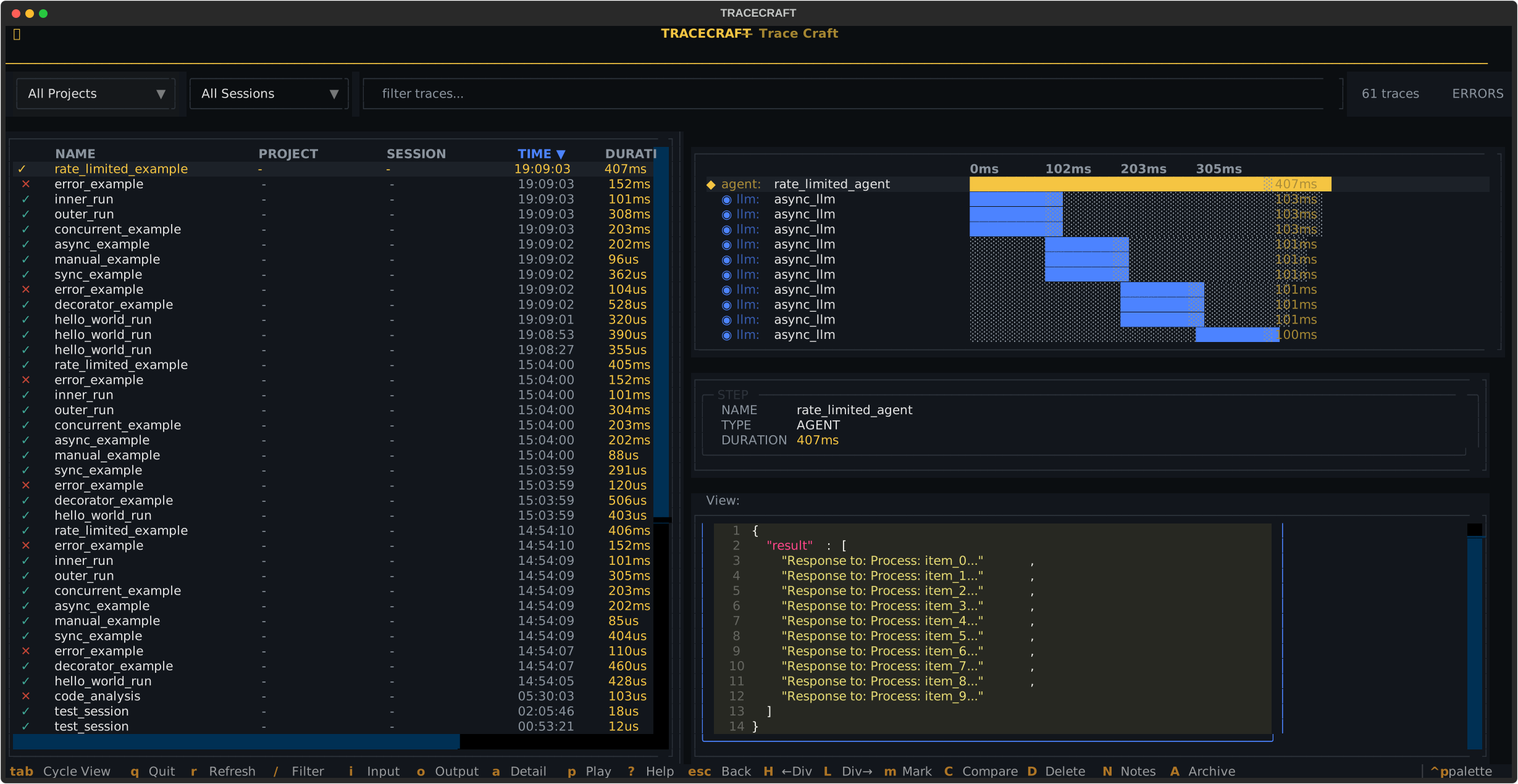
The main view shows all captured agent runs with name, duration, token usage, and status. Navigate with arrow keys. The filter bar at the top lets you search and filter by project or session.
Waterfall View — Call Hierarchy and Timing
Select any trace and press Enter — the waterfall expands to show the complete call tree:
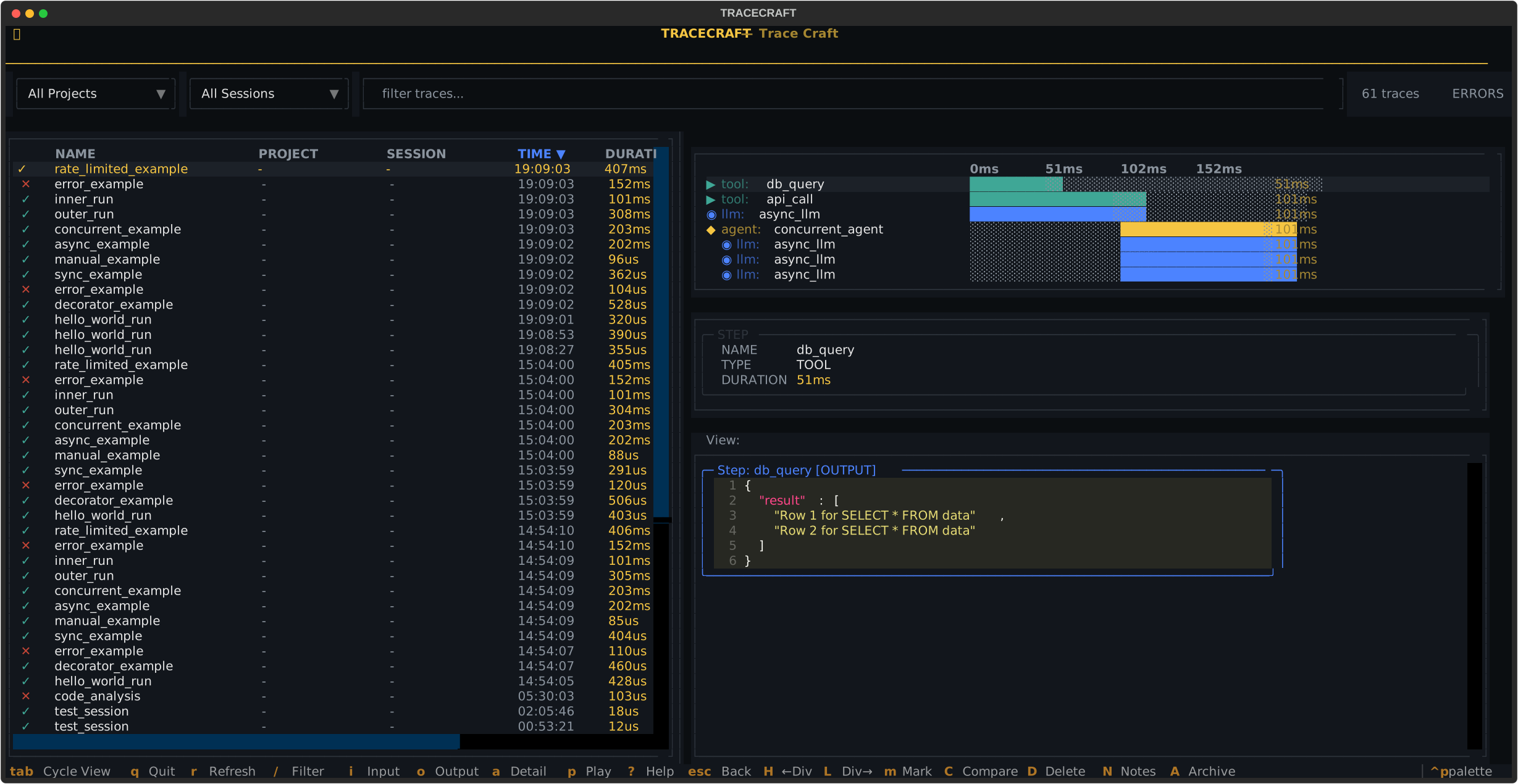
The waterfall shows agent → tool → LLM call hierarchy with timing bars. See exactly where your agent spends its time.
Input View — Every Prompt Sent to the Model
Press i while viewing any span to see the exact prompt, system message, and context:
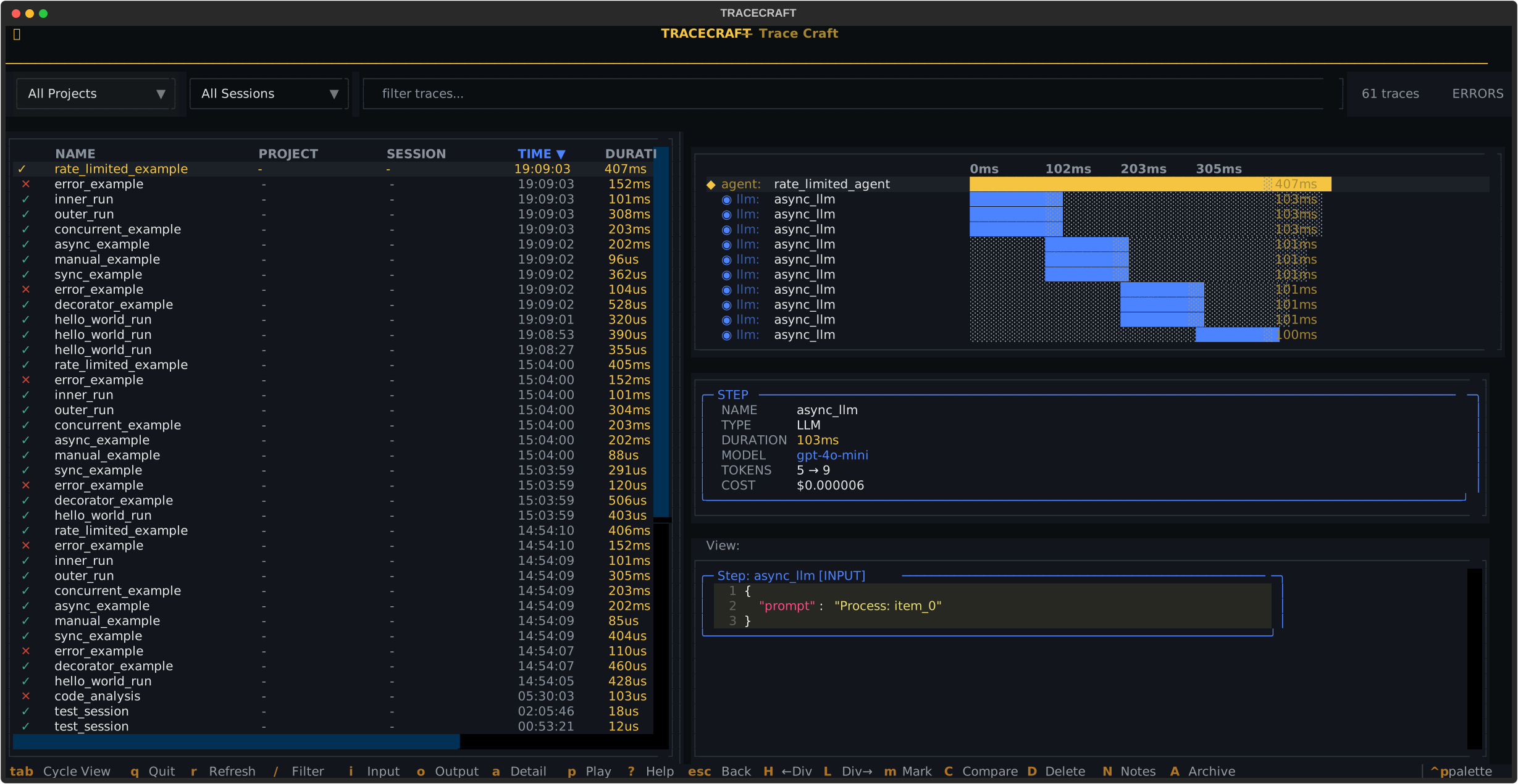
Full prompt inspection — every system message, user message, and context sent to the model.
Output View — Every Model Response
Press o to view the model’s complete response:
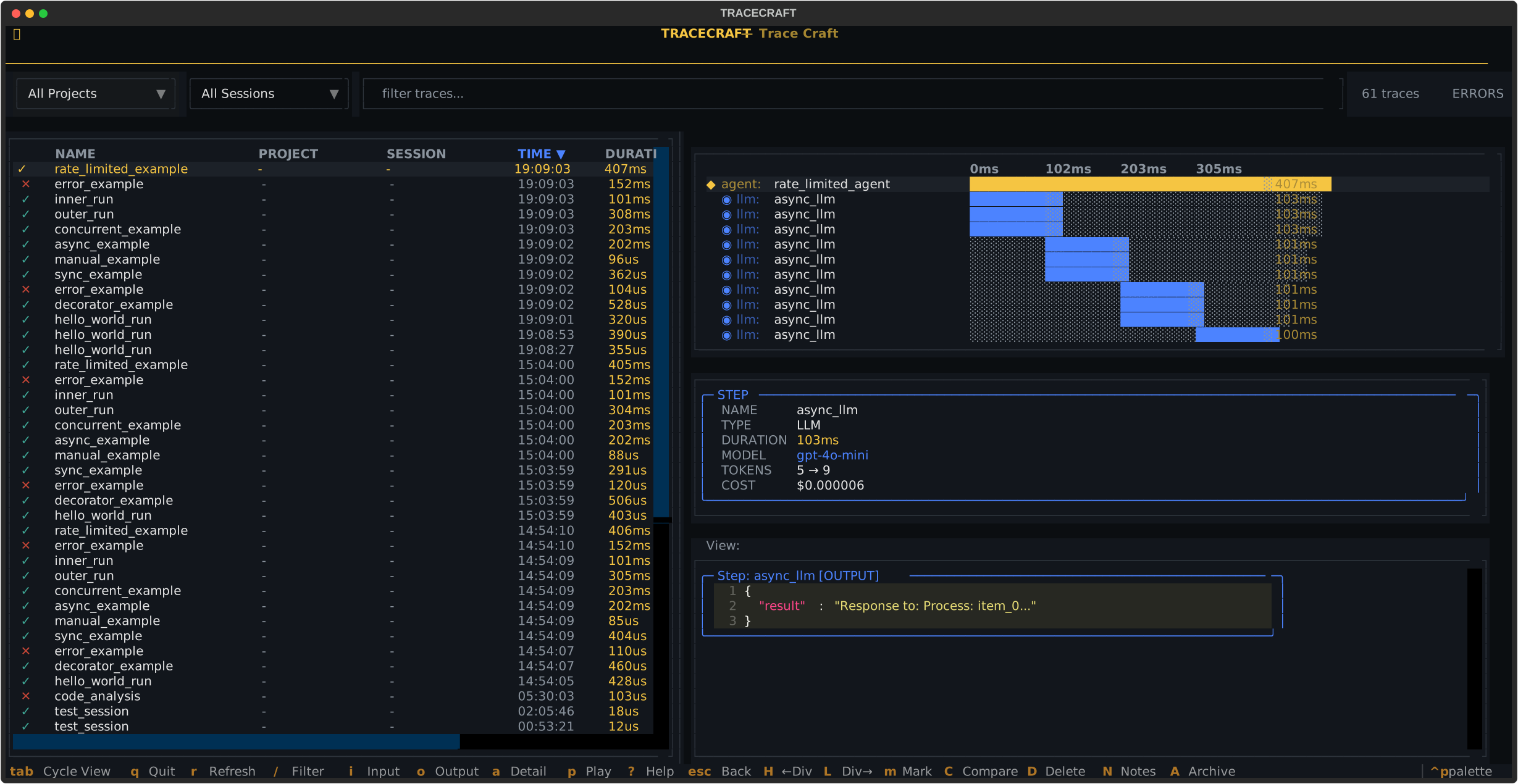
Model response with token counts and cost estimates displayed inline.
Attributes View — Span Metadata and Parameters
Press a to view all span attributes — model name, temperature, token counts, costs, and custom metadata:
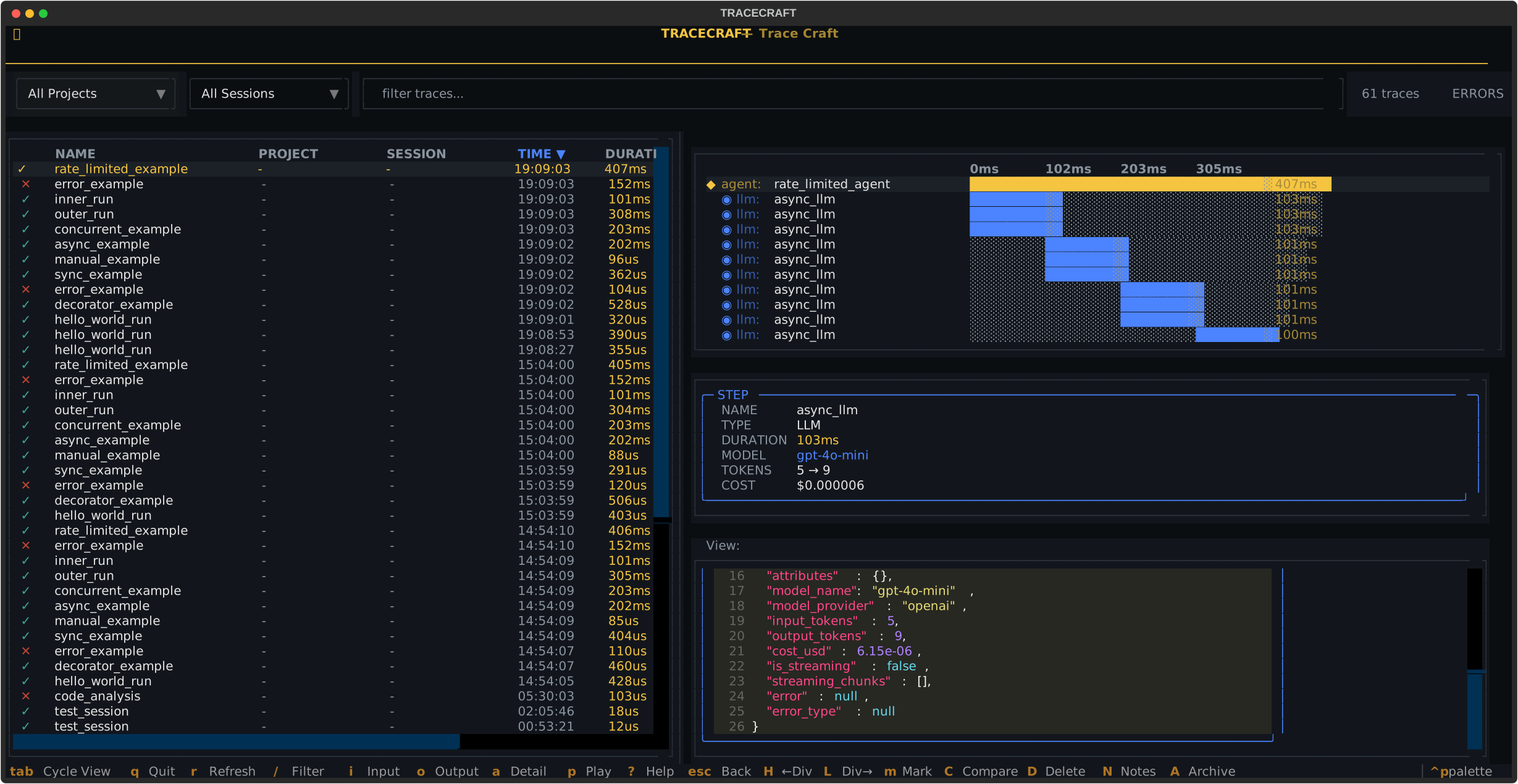
All span attributes: model, provider, temperature, token usage, cost, custom metadata, and timing.
Getting Traces into the TUI
There are two independent paths. Choose the one that fits your setup — or use both.
Path A: TraceCraft Instrumentation
Use this when you own the code. You have three options — auto-instrumentation is the fastest to set up.
Option 1 — Auto-Instrument + Stream to TUI in One Call
The receiver=True shorthand wires everything up in a single init() call: it auto-instruments your LLM SDKs and sends completed traces directly to the TUI receiver over OTLP. No JSONL file, no separate exporter config.
import tracecraft

# Must call init() BEFORE importing any LLM SDK
tracecraft.init(
    auto_instrument=True,      # patches OpenAI, Anthropic, LangChain, LlamaIndex
    receiver=True,             # streams traces to tracecraft serve --tui
    service_name="my-agent",   # optional — appears in the TUI trace list
)

# Now use your SDKs normally
from openai import OpenAI
client = OpenAI()
client.chat.completions.create(...)  # automatically traced and streamed to TUI
Start the TUI receiver in a separate terminal:
tracecraft serve --tuiThat’s the entire setup — two terminal commands, three lines of Python.
Custom receiver address:
tracecraft.init(
    auto_instrument=True,
    receiver="http://my-host:4318",  # remote or non-default port
    service_name="my-agent",
)
Combined with other exporters (receiver + Langfuse/Jaeger at the same time):
from tracecraft.exporters import OTLPExporter

tracecraft.init(
    auto_instrument=True,
    receiver=True,                                          # local TUI
    exporters=[OTLPExporter(endpoint="http://jaeger:4317")],  # also export to Jaeger
    service_name="my-agent",
)
Full Auto-Instrumentation Guide
Option 2 — Auto-Instrumentation to JSONL (File-Based)
Write traces to a local JSONL file, then open the TUI against that file:
import tracecraft

# IMPORTANT: call init() before importing any LLM SDK
tracecraft.init(auto_instrument=True, jsonl=True)

from openai import OpenAI
client = OpenAI()
client.chat.completions.create(...)   # automatically traced to JSONL
tracecraft tui traces/ # open TUI against the written fileSupports all four frameworks — see the Auto-Instrumentation Guide for per-framework examples.
Option 3 — Decorators
For custom agent/tool tracing with rich step names, semantic types, and custom attributes:
import tracecraft
from tracecraft import trace_agent, trace_tool, trace_llm

# Initialize with JSONL or SQLite output
tracecraft.init(jsonl=True)  # or: sqlite=True

@trace_agent(name="research_agent")
async def research(query: str) -> str:
    docs = await retrieve_docs(query)
    return await summarize(docs)

@trace_tool(name="retrieve_docs")
async def retrieve_docs(query: str) -> list[str]:
    return ["doc1", "doc2"]

@trace_llm(name="summarize", model="gpt-4o", provider="openai")
async def summarize(docs: list[str]) -> str:
    ...
Run your agent, then:
tracecraft tui traces/Combine Both
Auto-instrumentation and decorators work together — use decorators for agent/orchestration spans and auto-instrumentation to capture every underlying LLM call automatically.
Option 4 — Framework Adapters
For explicit per-invocation tracing with a LangChain adapter:
import tracecraft
from tracecraft.adapters.langchain import TraceCraftCallbackHandler

tracecraft.init(jsonl=True)

handler = TraceCraftCallbackHandler()
result = chain.invoke({"input": "hello"}, config={"callbacks": [handler]})
Path B: OTLP Receiver (tracecraft serve --tui)
Use this when you have an existing app using any OTLP-compatible framework — OpenLLMetry, LangChain’s OpenTelemetry exporter, LlamaIndex, DSPy, standard OTel SDK, or anything that speaks OTLP. No changes to your application code required.
# Start the receiver + TUI together
tracecraft serve --tui

# Or start just the receiver (headless), view in TUI separately
tracecraft serve --storage traces/myapp.db
tracecraft tui traces/myapp.db
The receiver listens on http://localhost:4318 (standard OTLP HTTP port). Point your app at it:
# Any OTLP-instrumented app
OTEL_EXPORTER_OTLP_ENDPOINT=http://localhost:4318 python your_app.py
Or configure in code:
# OpenLLMetry example
from opentelemetry.sdk.trace.export import BatchSpanProcessor
from opentelemetry.exporter.otlp.proto.http.trace_exporter import OTLPSpanExporter

tracer_provider.add_span_processor(
    BatchSpanProcessor(OTLPSpanExporter(endpoint="http://localhost:4318/v1/traces"))
)
Supported conventions:
- OTel GenAI Semantic Conventions (
gen_ai.*attributes) - OpenInference Semantic Conventions (
llm.*attributes — used by LlamaIndex, Phoenix)
Traces appear live in the TUI as they are received (with --watch mode enabled by default).
Quick Start
Installation
pip install "tracecraft[tui]"
# or with auto-instrumentation:
pip install "tracecraft[auto,tui]"Launch
Path A — after running your TraceCraft-instrumented agent:
# Open TUI from config-specified storage (default: traces/tracecraft.db)
tracecraft tui

# From a JSONL file (default output from tracecraft.init(jsonl=True))
tracecraft tui traces/tracecraft.jsonl

# From a SQLite database (richer — supports projects, sessions, notes)
tracecraft tui traces/tracecraft.db

# From a directory (auto-discovers trace files)
tracecraft tui traces/
tracecraft tui with no arguments reads the storage path from .tracecraft/config.yaml.
Path B — start receiver + TUI together:
# Start receiver on :4318 and open TUI (live-updating)
tracecraft serve --tui

# Custom port or storage location
tracecraft serve --tui --port 4317 --storage my_traces.db
Then set OTEL_EXPORTER_OTLP_ENDPOINT=http://localhost:4318 in your app and run it.
Traces appear in the TUI in real-time.
Loading from SQLite vs JSONL
The TUI supports both JSONL and SQLite storage backends. SQLite enables additional features:
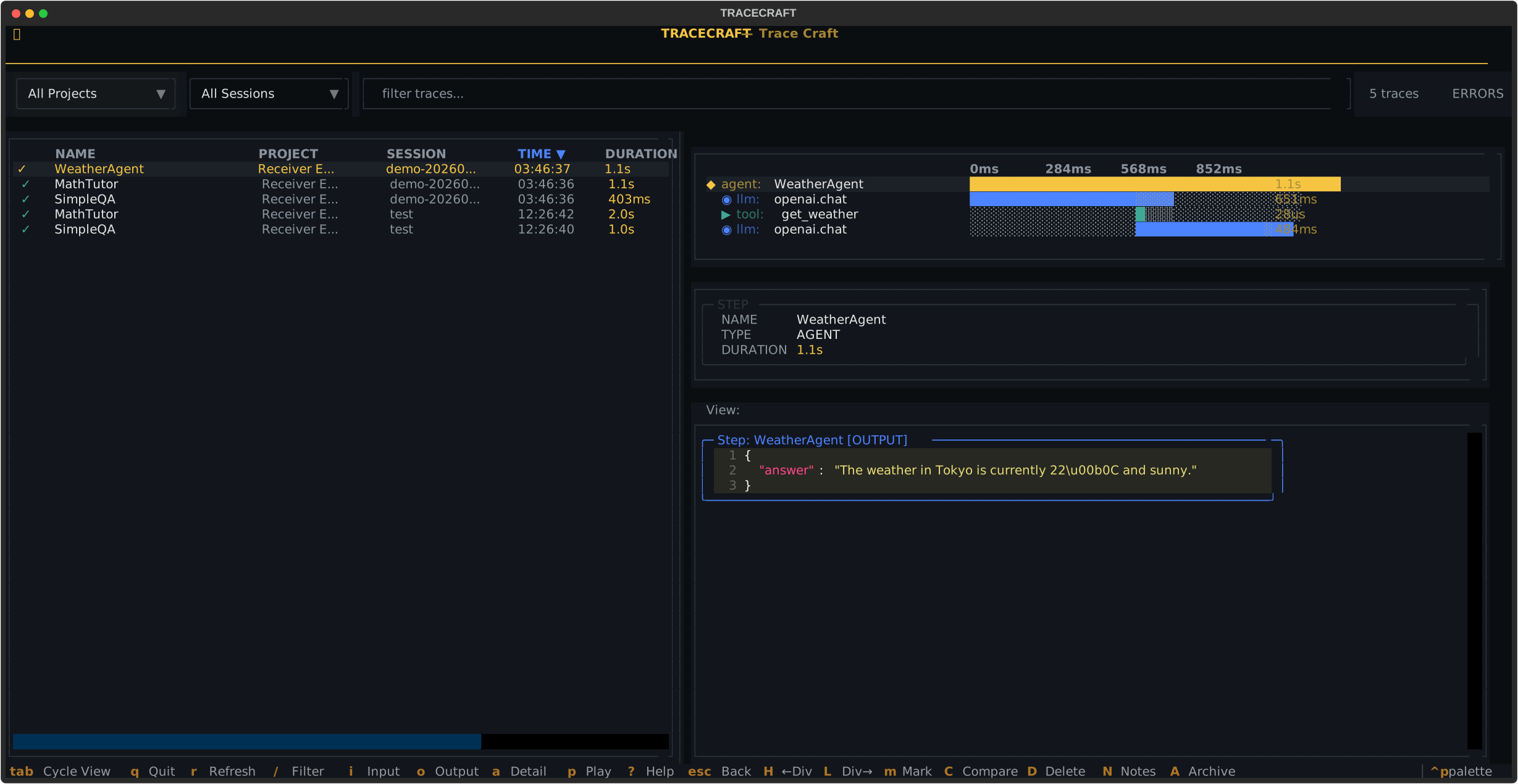
SQLite view: project and session columns are populated, enabling filtering by project or session. Agent names like “WeatherAgent” and “MathTutor” are shown with full project context.
Configure SQLite output with:
tracecraft.init(sqlite=True) # Saves to traces/tracecraft.dbKeyboard Shortcuts
All TUI actions are keyboard-driven. Press ? at any time to show the built-in keyboard shortcut reference:
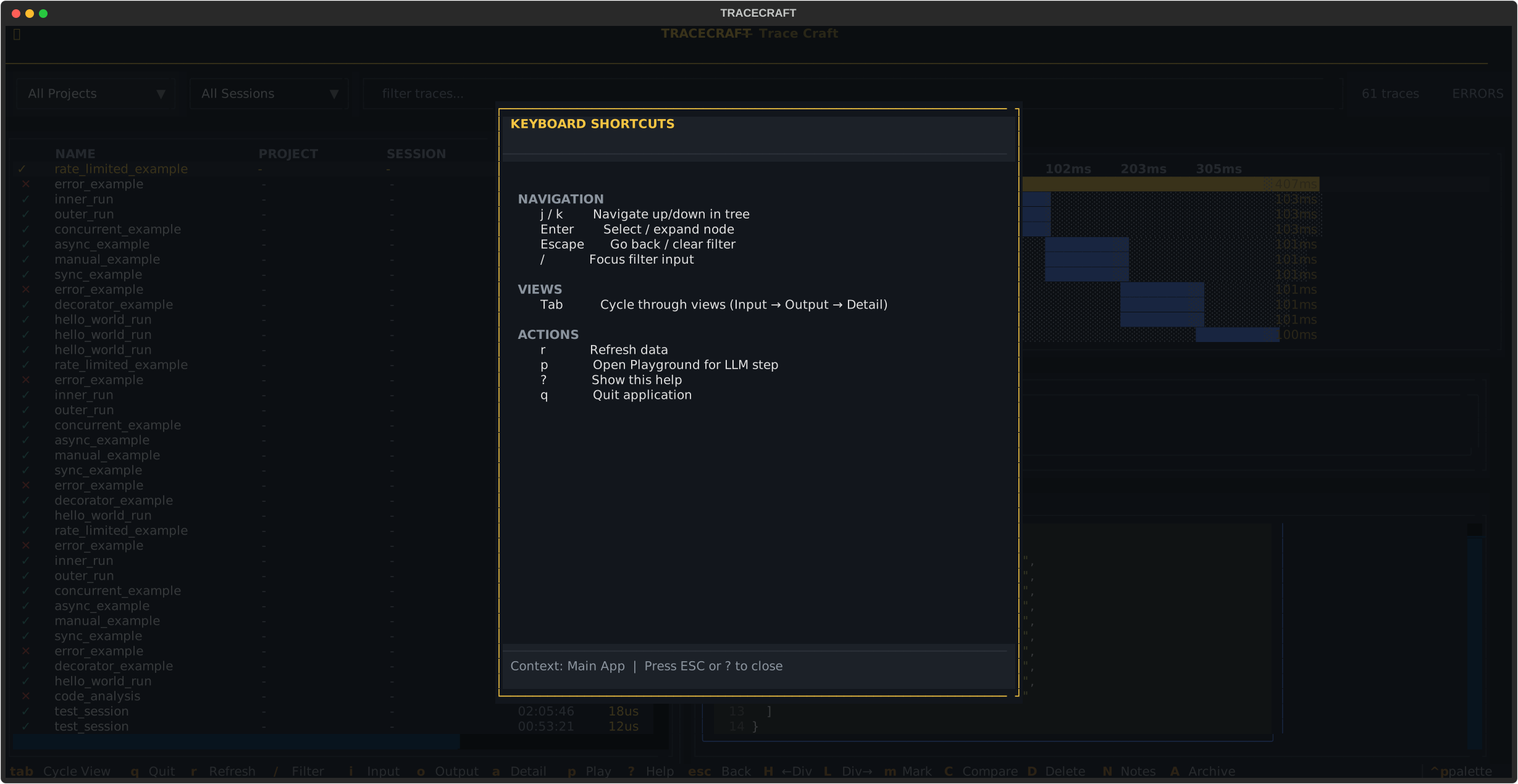
The help screen (press ?) shows all keyboard shortcuts in context.
Navigation
| Key | Action |
|---|---|
↑ / ↓ | Move up/down in the trace list |
Enter | Expand/select trace — shows waterfall |
Tab | Cycle through IO viewer modes (Input → Output → Detail) |
Escape | Collapse waterfall / clear filter |
r | Refresh trace data |
View Modes
| Key | Action |
|---|---|
i | Switch to Input view — shows prompts sent to the model |
o | Switch to Output view — shows model responses |
a | Switch to Attributes/Detail view — shows span metadata |
Tab | Cycle through Input → Output → Detail |
Search & Filter
| Key | Action |
|---|---|
/ | Focus the filter bar |
Escape | Clear filter |
Trace Management
| Key | Action |
|---|---|
m | Mark a trace for comparison |
C | Compare marked trace with current trace |
V | View comparison results |
D | Delete current trace (with confirmation) |
N | Edit notes for current trace |
A | Toggle archive status |
Layout
| Key | Action |
|---|---|
+ / = | Grow waterfall/left panel |
- | Shrink waterfall/left panel |
H / [ | Shrink left panel (move divider left) |
L / ] | Grow left panel (move divider right) |
Other
| Key | Action |
|---|---|
p | Open Playground — re-run or edit the selected LLM prompt |
? | Show help screen |
q | Quit |
Features in Detail
Trace List
The trace list shows all captured agent runs at a glance. Each row shows:
- Name: The agent or root span name
- Duration: Total wall-clock time for the entire trace
- Tokens: Total tokens used across all LLM calls in the trace
- Status: Success (
✓), Error (✗), or Warning - Timestamp: When the trace was recorded
Navigate with ↑/↓. Press Enter to select a trace and expand the waterfall view.
Waterfall View
The waterfall shows the complete call hierarchy for the selected trace. Press Enter on any trace to expand it:
- Agent spans are shown at the top level
- Tool calls are nested under agents
- LLM calls are nested under tools or agents
- Timing bars show relative duration (█ used, ░ waiting)
- Token counts are shown inline for LLM spans
Navigate the waterfall with ↑/↓ to select specific spans. Press i, o, or a to inspect the selected span.
Filter Bar
Press / to activate the filter bar. Type to filter traces by name or agent:
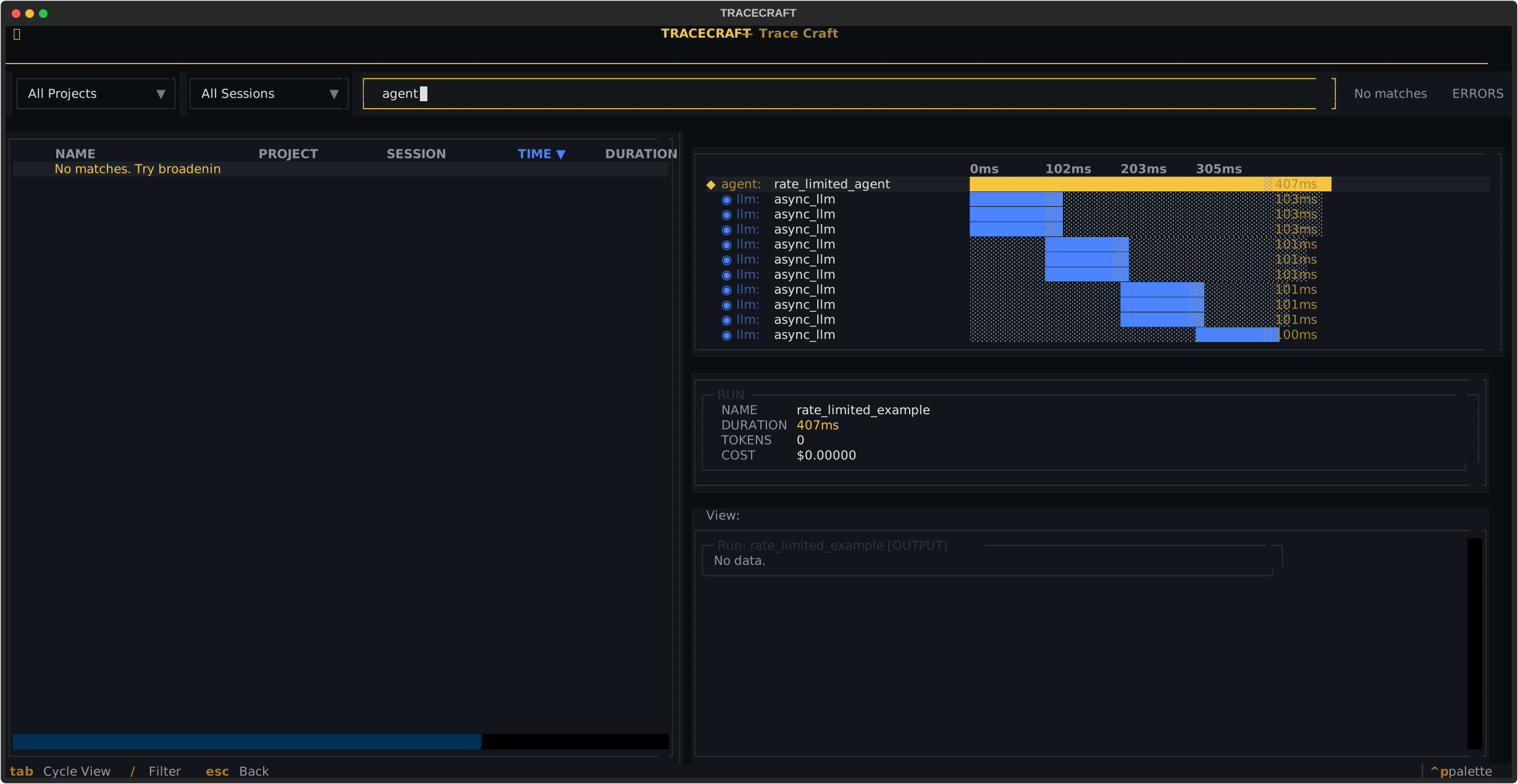
Filter bar active with search text typed. The result count updates in real-time.
Press Escape to clear the filter and return to the full trace list.
Filtering for Errors Only
Click the ERRORS toggle button or use the filter dropdown to show only traces with errors:
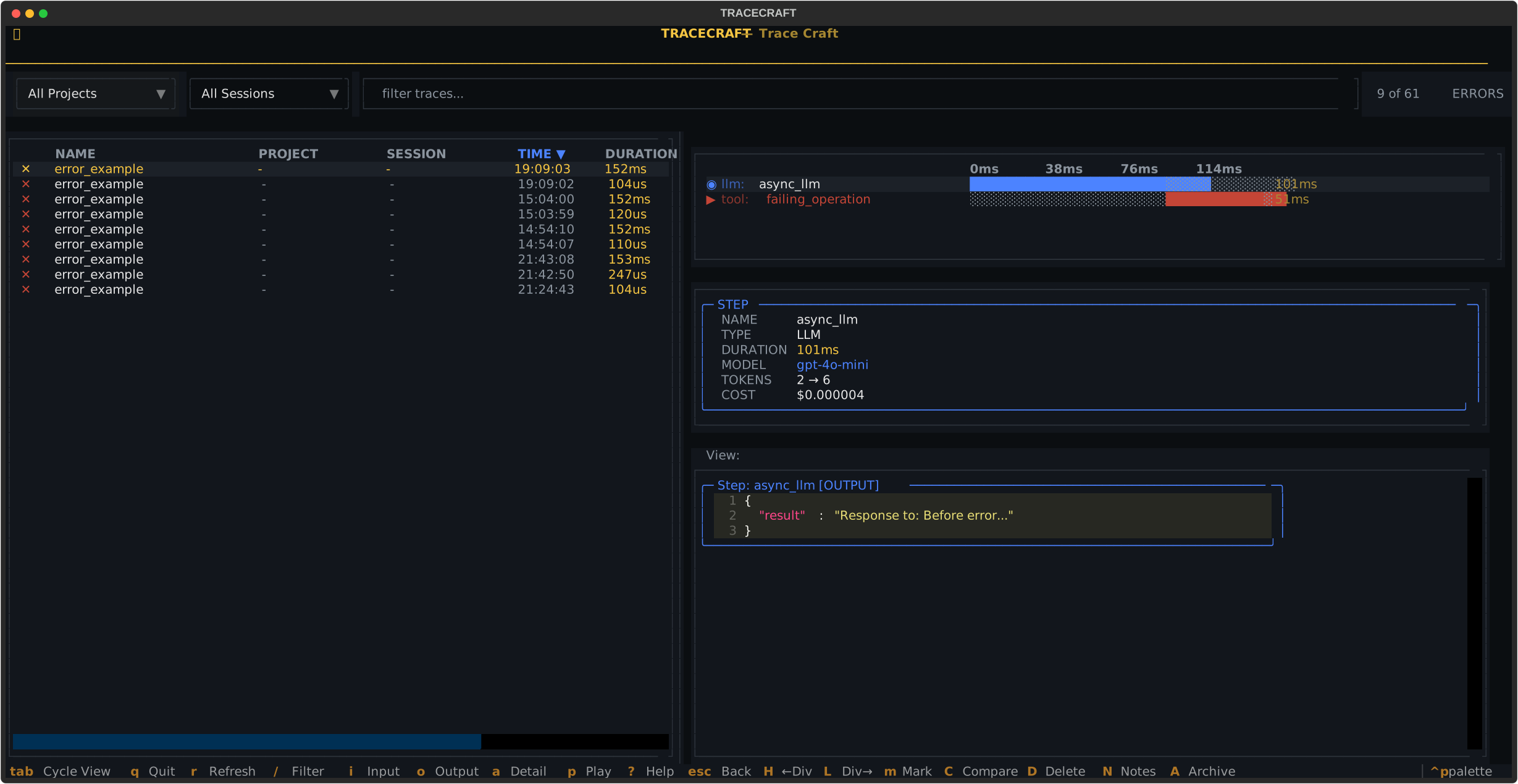
Error filter active — shows “9 of 61” matching traces. Error traces are immediately visible for fast debugging.
This is the fastest way to find and debug failing agent runs.
Input View
Press i to view the exact input sent to the selected operation:
- For LLM spans: Shows system messages, user messages, and any documents/context
- For tool spans: Shows the arguments passed to the tool
- For agent spans: Shows the agent’s initial input
Output View
Press o to view the output from the selected operation:
- For LLM spans: Shows the model’s response, with token counts and cost estimates
- For tool spans: Shows the tool’s return value
- For agent spans: Shows the agent’s final output
Attributes View
Press a to see all metadata for the selected span:
- Model name and provider
- Temperature, max tokens, and other LLM parameters
- Token usage breakdown (prompt, completion, total)
- Estimated cost per LLM call
- Custom attributes added via
step.attributes - Error messages and stack traces (for failed spans)
- Span timing (start time, end time, duration)
Notes
Press N to add notes to any trace (requires SQLite storage):
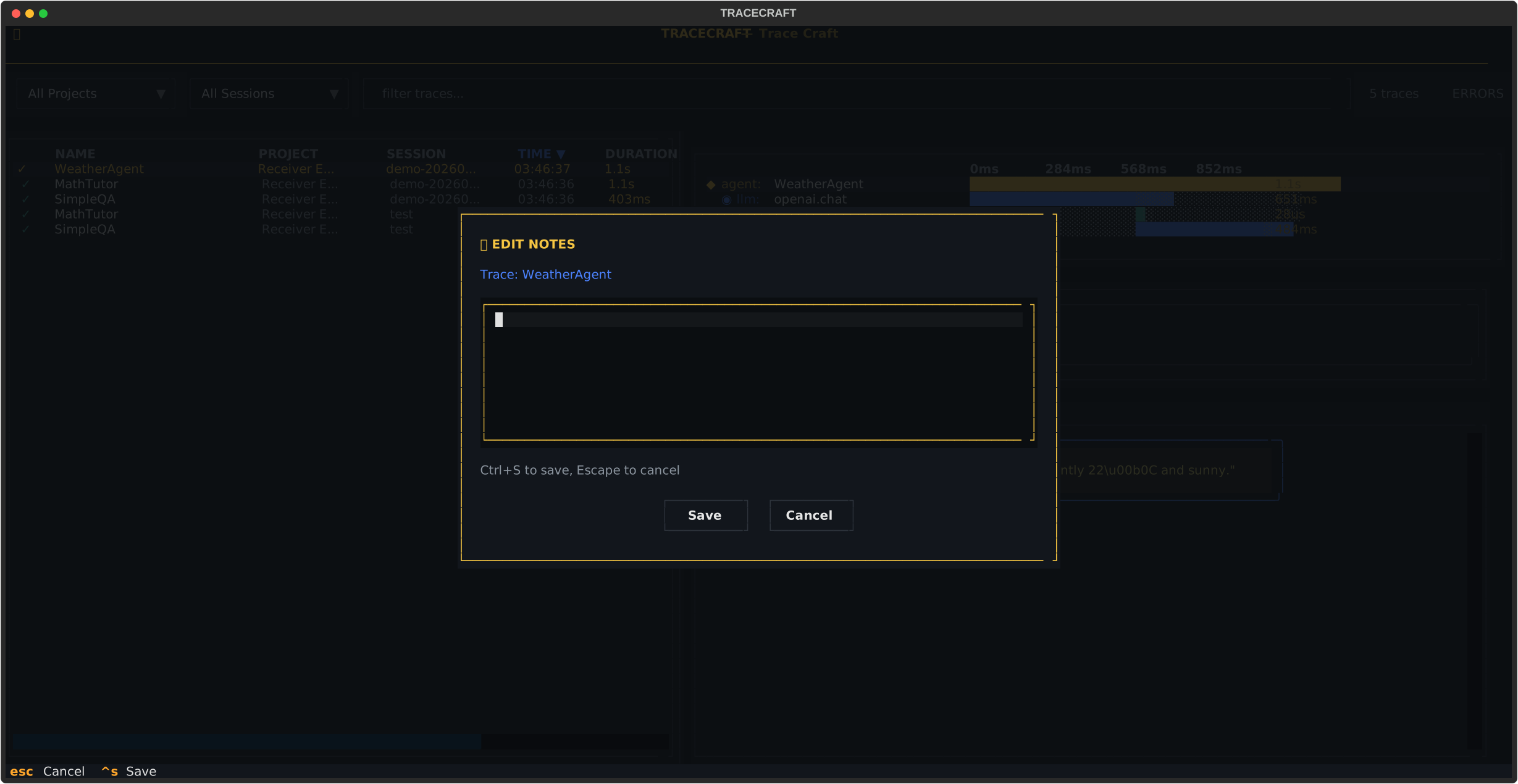
Notes editor for the selected trace. Notes persist across TUI sessions in the SQLite database.
Notes are useful for:
- Annotating interesting or buggy traces for review
- Documenting findings during debugging sessions
- Marking A/B test results
Enable SQLite storage for notes support:
tracecraft.init(sqlite=True) # Notes require SQLite backendTrace Comparison
Compare two agent runs to understand performance differences:
- Navigate to the first trace and press
mto mark it - Navigate to the second trace and press
Cto compare - Select a comparison prompt and model in the picker
- Press
Vto view comparison results
Great for:
- A/B testing different prompts or system messages
- Comparing model performance (gpt-4o vs gpt-4o-mini)
- Debugging performance regressions between deployments
Playground
Press p on any LLM span to open the Playground — an interactive prompt editor that lets you:
- Edit the system prompt or user messages
- Re-run the prompt against any configured model
- See the new response alongside the original
- Iterate on prompts without changing your code
The Playground connects to real LLM APIs, so your TraceCraft API key configuration must be set for the chosen model.
Configuration
Environment Variables
# Default trace directory
export TRACECRAFT_TRACES_DIR=./traces

# Color theme (dark, light, auto)
export TRACECRAFT_TUI_THEME=dark
Command Line Options
tracecraft tui [OPTIONS] [SOURCE]

Options:
  --watch, -w    Watch for new traces in real-time (live mode)
  --serve, -S    Start OTLP receiver on :4318 before opening TUI
  -h, --help     Show help
Live Mode
Watch for new traces as your agent runs:
tracecraft tui traces/ --watchNew traces appear automatically as they’re written to disk. This is useful when:
- Running long agent workflows and watching them execute step by step
- Monitoring batch processing jobs in real-time
- Debugging integration tests
Tips & Tricks
Quick Debugging Workflow
- Run your agent with
tracecraft.init(jsonl=True) tracecraft tui traces/to launch the TUI- Press the ERRORS toggle to show only failed traces
- Press
Enteron an error trace to expand the waterfall - Navigate to the failing span with
↑/↓ - Press
ato see the full error message and stack trace
Finding Slow Operations
- Launch the TUI and scan the duration column
- Select a slow trace with
Enterto open the waterfall - Look for the span with the longest timing bar
- Press
ito see what prompt caused the long LLM call - Press
pto open Playground and iterate on the prompt
Cost Analysis
Press a on any LLM span to see the cost breakdown:
model_name:    gpt-4o-mini
input_tokens:  892
output_tokens: 355
cost_usd:      $0.000147
Compare multiple LLM spans in the waterfall to identify the most expensive calls.
Comparing Runs
- Mark the baseline run with
m - Navigate to the new run and press
C - Select a comparison model
- Press
Vto see a diff of the two runs side-by-side
Pulling from Cloud Platforms
The TUI can connect directly to traces stored in AWS X-Ray, GCP Cloud Trace, Azure Monitor, or DataDog — no data migration required.
# AWS X-Ray (boto3 credential chain)
tracecraft tui xray://us-east-1/my-bedrock-agent

# GCP Cloud Trace (Application Default Credentials)
tracecraft tui cloudtrace://my-gcp-project/my-vertex-agent

# Azure Monitor / Application Insights (DefaultAzureCredential)
tracecraft tui azuremonitor://xxxxxxxx-workspace-id-xxxx/my-ai-foundry-agent

# DataDog APM (DD_API_KEY + DD_APP_KEY env vars)
DD_API_KEY=xxx DD_APP_KEY=yyy tracecraft tui datadog://us1/my-service
See the Remote Trace Sources guide for installation, authentication, config-file usage, and troubleshooting.
Next Steps
- Decorators — Instrument custom agents and tools
- Auto-Instrumentation — Zero-code capture for OpenAI/Anthropic
- Exporters — Configure where traces are stored
- Configuration — Full configuration reference
- Remote Trace Sources — Pull from X-Ray, Cloud Trace, Azure Monitor, DataDog